 SIGN IN ☰
Getting Started
Welcome to the Procode API Portal. Here you can interact directly with our systems to perform enquiries and updates. We provide a large variety of APIs for the Energy sector, including:
Assets - Provides access to customers' smart meter inventory.
Authentication - Controls all aspects of security such as token requests, registration, login and password reset.
Customers - Provides access to messaging functions, Premises details and the service points at those premises.
Billing - Provides access to operations involving the customer's billing account. Use it to retrieve information about the customer's debt balance or savings balance.
Metering - Provides information specifically related to meters, including the prepayment meter balance.
Payments - Provides access to functions regarding the raising of orders and bank transactions.
This site provides comprehensive documentation for all our APIs and you’ll find everything you need to know about working with a particular API in the corresponding section. This topic describes fundamental concepts that apply across all our APIs.
Accessing APIs
To gain access to the Procode APIs you'll need to create an account and subscribe to the API or APIs that you want to use.
This is currently undertaken by invitation. Contact a developer who will email an invitation.
To create an account:
Click the Sign In button at the top-right of the page.
Click the Sign Up link.
Fill in your details and click the Sign Up button.
To subscribe to a set of APIs:
Make sure you're signed in then click the Products link at the top of the page. You'll see a list of products.
Click the required product to see a list of APIs included with it.
If you want to subscribe to these APIs, type a unique subscription name next to the Subscribe button. This is your own description of the product for your own purposes.
Click Subscribe.
The Profile Page is displayed, where you can see a list of current and pending subscriptions. You'll receive an email acknowledgement shortly.
An administrator will look at your request and notify you when access if granted.
After you’ve completed the signup process and acknowledged our terms, you can access your unique API key(s). You'll use your API keys in the header section of your API calls to authorise access. Authentication is required for all endpoints in our APIs. For more information, see Authentication.
API Protocols
All our APIs are built on RESTful principles and secured with OAuth2. The data interchange format is JSON. All API traffic must use HTTPS.
All API paths take the same generic structure as follows:
{baseURL}/api/{service}/{resource}/{resource-id}/{subresource}/{subresource-id}
Resources in this context are commonly referred to as APIs throughout the API Portal, and resource-ids are called operations.
Storing API Data
Any token returned by the API is sensitive and should be stored securely. Procode tokens should never be exposed on the client side. Consumer data obtained from the Procode APIs is sensitive information and should be managed strictly according to GDPR principles.
API Host
We use two environments:

Both are development environments. There is no sandbox environment currently.
Authentication
Almost all endpoints in the Procode APIs use OAuth2 authentication. Initial contact operations such as registration do not require authentication.
Under OAuth2, you use an application and an individual user's login credentials to obtain a bearer token. Use the TokenRequest operation under the Auth API to obtain a token. Then you can use that token as credentials for API requests in place of a user name and password. The bearer token is specified in the Authorization header of the request. Keep this token private, because other people could use it to access the account's subscriptions.
Refreshing tokens
Tokens are valid for the number of seconds returned in the expires-inparameter. You can refresh the token to continue using it.
To refresh a token, pass the relevant information to the RefreshToken operation under the Auth API. The response includes the existing refresh token and a new token that is valid for one hour.
Two-Factor Authentication (2FA)
End users who access applications that use out APIs may need to conduct two-step authentication, whereby in addition to a user code and password, they must acknowledge an email or text message before gaining access to the application. This is actioned using the SendOTP operation in the Authorisation API.
Typical API Call Flow
Here is an example of call flow:
Register → 2. Login → 3. Retrieve premises/features → 4. Get service points → 5. Access devices/balances → make a payment
Many calls can be made in parallel after authentication.
Data Formats
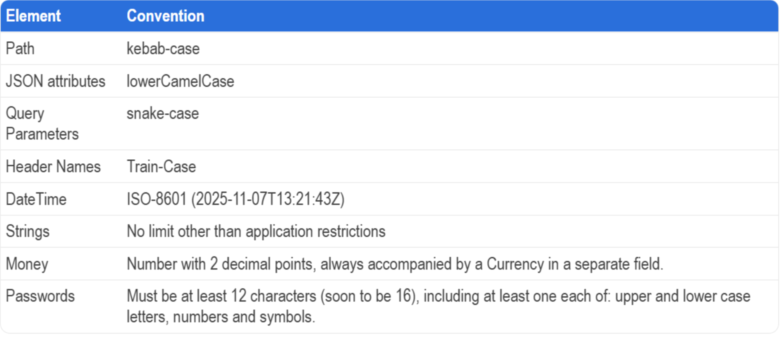
We use the following data conventions:
Header Requirements
Most API operations have strict header requirements as follows:
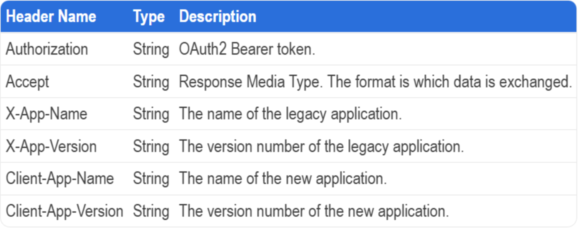
Some operations require other header parameters in addition to these. Where this occurs, the extra fields are documented on the operation.
Error Messages
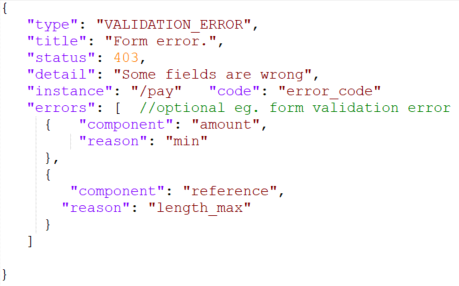
Operations that result in an error will include an ErrorResponse object in the response. All error messages generated comply with RFC9457 standards for Problem Details. You can see possible errors when viewing an operation in the API Portal.
Here is an example:
Trying Out APIs
Testing Operations
You can test any operation from the API Portal, however you should be aware that you might be updating real information.
To test an operation:
Select the relevant API from the APIs page.
Select the required operation.
Click Try this operation (under the Endpoint section). The Request dialog opens. The headers are filled in automatically by the system, and the request body is populated with sample data which might be invalid.
If the endpoint accepts parameters as part of the URL, you can change these in the Parameters section.
If necessary, change the JSON data in the Body section to reflect the data you want to submit, ensuring the integrity of the JSON structure.
Click the Send button at the bottom of the dialog.
The response to your request is displayed in the HTTP response section below.
Code Samples
Sample code is available for all operations in multiple programming languages.
To see code examples for a particular language:
Select the relevant API from the APIs page.
Select the required operation.
Click Try this operation (under the Endpoint section). The Request dialog opens.
In the HTTP Request section, select the required language from the dropdown list.
Sample code for your chosen language is displayed below. You can copy and paste it if needed.